Check-in staff guide
Check-in staff use a narrow onsite surface. The checkin role can open the event picker and check-in desk; it does not grant the general organizer workspace.
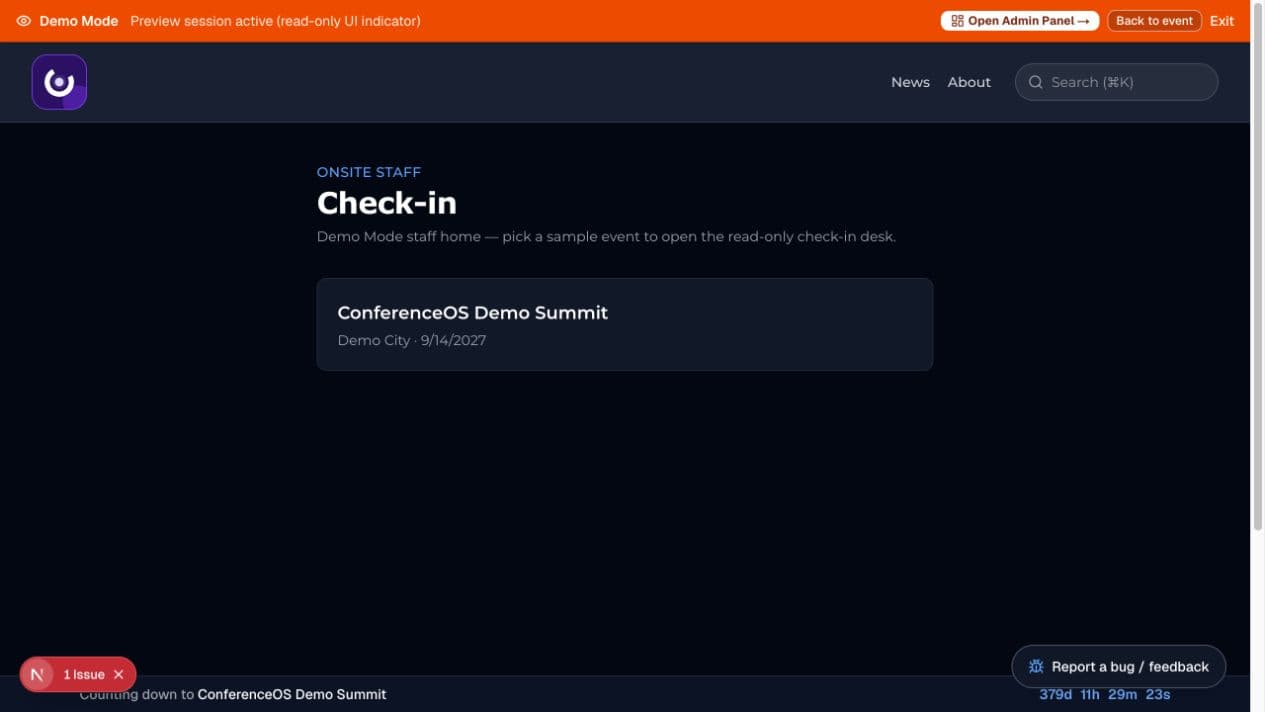
Figure 1 — Staff begin at the check-in event picker. Demo Mode uses fictional events and remains read-only.
Before doors open
- Sign in with the account the organizer assigned the
checkinrole. - Open
/checkinand choose the correct event. - Confirm the event name and date before scanning anyone.
- Test the scanner or camera permission and one organizer-approved test registration before the live queue begins.
- Know the event's escalation path for duplicate records, unpaid or pending registrations, transfer questions, badge errors, and accessibility needs.
Check in an attendee
- Scan the attendee's registration QR code, or search using the information the attendee provides.
- Match the record to the person and event. Do not rely on name alone when multiple records look similar.
- Read the registration status before confirming check-in.
- Complete the check-in once. A successful result changes the attendance record; a confirmed ticket by itself is not the same as checked in.
- Tell the attendee what to do next, including badge pickup or session access.
Exceptions
- No record: try the attendee's confirmation email and ask an organizer to investigate; do not create a replacement registration from the kiosk.
- Pending or unpaid: follow the organizer's payment desk policy. Check-in staff should not override payment or inventory controls.
- Already checked in: verify identity and ask a lead before reprinting or changing anything.
- Wrong event: return to
/checkinand select the correct event. - Scanner unavailable: use manual search if the organizer allows it. Never photograph or copy a list of attendee QR codes as a workaround.
Privacy and security
Keep the kiosk attended, lock or sign out when leaving, and show only the minimum attendee information needed for check-in. Do not export registrations, change ticket inventory, or request organizer privileges to solve an onsite exception.
Demo Mode
The staff preview at /checkin can list demo events without a real account. The orange banner states that the session is a read-only preview. Use it to learn navigation, not to rehearse a real mutation.