CRM, sponsors, partners, vendors, and support how-to
This chapter explains the relationship workspace behind ConferenceOS 1.0: event-scoped CRM people and organizations, imports and collision review, sponsorship pipeline and fulfillment, community partners, vendors, inbound support queues, and sponsor-mail routing. Sponsor users should also read the sponsor guide.
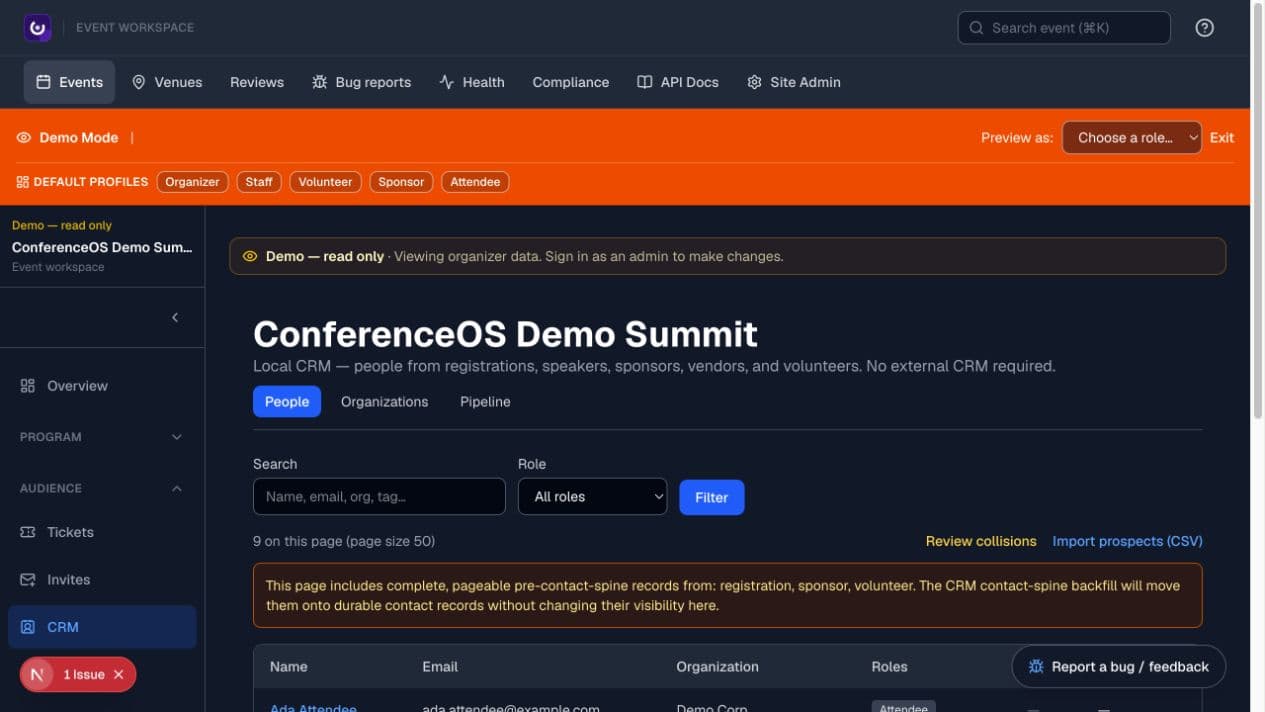
Figure 1 — The CRM people view exposes event scope, role history, search, and collision review before relationship work begins.
Understand how CRM composition works
ConferenceOS does not make a second universal person record for every feature. The event CRM composes operational subjects already associated with the event, including registrations, speakers, sponsors, vendors, volunteers, imported prospects, and related organizations.
Opening a subject detail can combine:
- source and role context;
- notes, tasks, and tags;
- activity timeline;
- support history;
- enrichment state;
- sponsorship pipeline, deliverables, and benefit context when applicable.
The event name remains the scope boundary. A relationship in one event must not silently expose or modify private work from another event.
Find a person or organization
- Open Audience → CRM.
- Choose People, Organizations, or Pipeline.
- Search by the smallest reliable identifier: email, name, organization, sponsor tier, source role, or tag.
- Compare source and role history before opening or changing a record.
- Open the subject detail and verify the event, identity, source kind, and linked organization.
Search before importing or creating outreach data. Similar names are not proof of identity, and a shared email is a collision to review rather than an automatic merge decision.
Import CRM prospects from CSV
Imported prospects are outreach contacts; they do not become registered attendees merely because they enter the CRM.
- Open CRM → Import prospects (CSV).
- Prepare a minimal CSV with supported headers such as email, first name, last name, company, tags, and role.
- Add a source or import tag that explains why the data belongs in this event.
- Paste or upload the CSV and run the preview.
- Review invalid rows, duplicates, likely collisions, and the created/linked counts before applying.
- Apply once, then read back the final created, linked, skipped, and collision results.
- Open a sample of imported records to confirm source, organization, and tags.
Do not import a purchased list or personal data without an approved purpose and lawful basis. An imported contact is not marketing consent.
Review contact collisions
- Open CRM → Review collisions.
- Compare the existing subject with incoming name, email, organization, role, source, and tags.
- Choose Accept only when the records represent the same real subject and the proposed link preserves correct event semantics.
- Choose Reject when they are different people or organizations.
- Choose Skip when the evidence is not sufficient; investigate outside the collision screen and return later.
- Confirm the resulting CRM subject and timeline.
Collision decisions affect future relationship composition. Do not accept a collision merely to remove it from the queue.
Add notes, tasks, and tags
- Open the correct CRM subject detail.
- Add a Tag for a stable operational classification, such as a campaign, priority, or follow-up cohort.
- Add a Note for concise event-relevant context that should remain with the relationship workspace.
- Add a Follow-up task with a clear action and due date when work remains.
- Mark the task complete only after the action is actually finished.
- Check the activity timeline to confirm the change.
Notes and tags are not public event content. Avoid secrets, payment-card data, identity documents, irrelevant personal details, or copied private correspondence. Use a support case for an inbound service conversation.
Use the sponsorship pipeline
Open CRM → Pipeline for the event's sponsorship portfolio and revenue views.
- Review deals by stage and investigate the unmatched bucket.
- Open a deal and verify organization, primary contact, source, stage, pipeline amount, actual/plan/target context, open tasks, support cases, and deliverables.
- Move the deal to a new stage only when the relationship has reached that stage in reality.
- Add the next follow-up task and due date.
- Keep pipeline amount, recorded sponsorship revenue, sponsorship plan, and event target conceptually separate.
Expected result: the portfolio view shows current stages and next actions; the revenue view aggregates the saved event and deal values. A pipeline amount is a forecast, not proof of signed contract, payment, or recognized revenue.
Create and fulfill a sponsorship
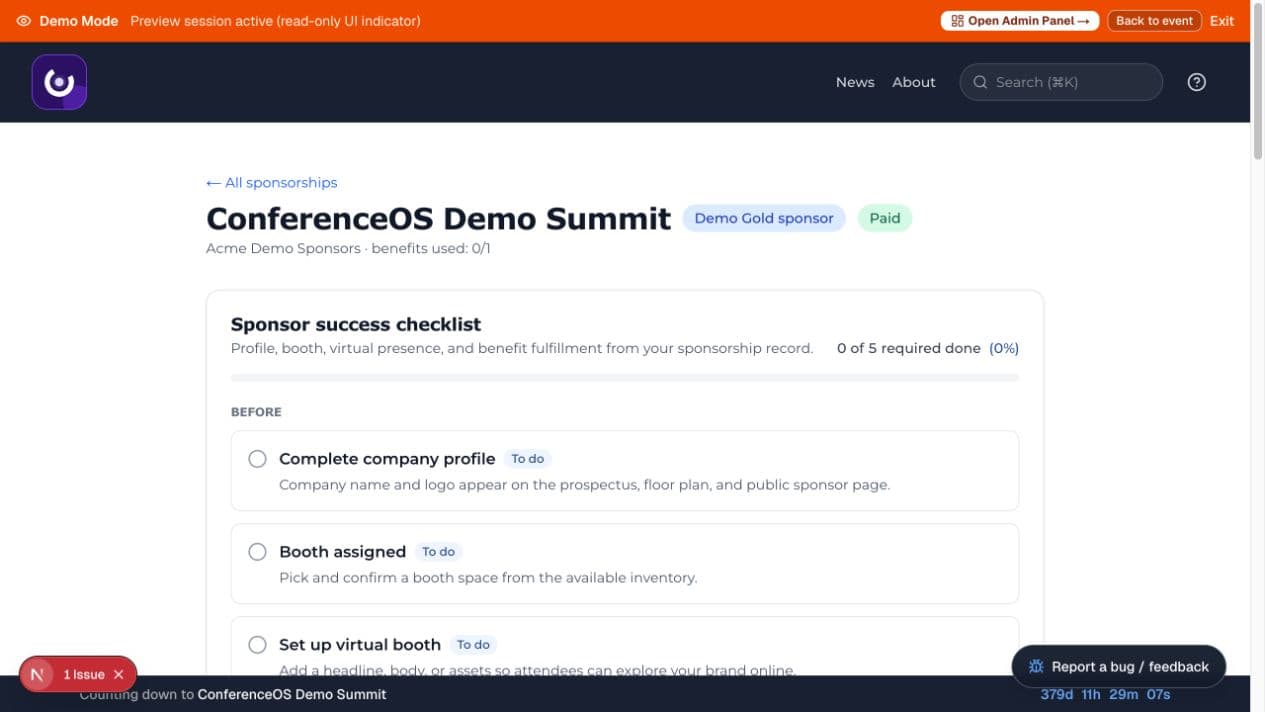
Figure 2 — The sponsor portal summarizes event, organization, level, payment state, benefit usage, and readiness for an event-specific sponsor association.
- Open Partners → Sponsors and confirm the event.
- Associate the intended organization and contact with the correct sponsor level.
- Record payment state only from authoritative evidence; do not infer it from pipeline stage.
- Configure public company profile, logo, description, links, offers, physical booth, and virtual-booth assets.
- Assign benefits, pass allotment, and deliverables independently.
- Provision portal or claim access only for the intended organization and event.
- Review the public sponsor page and sponsor portal using the appropriate signed-out or sponsor access path.
Private contracts, internal notes, support conversations, and payment-provider details must not appear on public sponsor pages.
Track sponsor deliverables and attendee leads
- Open the sponsor's CRM or sponsorship detail.
- Review each promised deliverable and its owner, due date, and completion evidence.
- Add or update the deliverable without removing unrelated CRM notes, tasks, tags, timeline, pipeline controls, enrichment, or support history.
- Use the lead-capture workflow only for the intended sponsor and event.
- Share consented attendee-list access only when the attendee explicitly allowed sponsor sharing and the sponsor is entitled to that benefit.
- Revoke or replace exposed capture and pass-claim links.
A sponsorship does not create blanket permission to market to attendees. Withdrawn consent must be honored, and downloads remain audit-relevant copies.
Manage community partners and vendors
Use Partners → Partners for community relationships published or tracked as event partners. Use Partners → Vendors for operational suppliers.
- Create or select the organization within the current event.
- Record the role, primary contact, public assets, internal owner, and next task appropriate to that relationship.
- For a public partner, verify logo, description, URL, tier, and publication state signed out.
- For a vendor, track operational scope, status, contact, and event-relevant work without exposing contracts or credentials publicly.
- Link support or CRM history when the product offers it instead of copying conversation text into multiple places.
Partner, vendor, and sponsor roles are distinct. Do not promote one into another merely to obtain a portal or public placement.
Configure support queues and routing
Support is an event-scoped inbound work system. Provider and Google Workspace routing determine what reaches ConferenceOS; support settings determine the event queue and handling after receipt.
- Open Outreach → Support → Settings.
- Review queues, routing rules, fallback behavior, recipient addresses, and permitted event aliases.
- Prefer deterministic event addressing, such as the configured event alias, over guessing solely from message text.
- Keep a generic fallback queue for mail that cannot be assigned safely.
- Test with approved messages that cover the intended event alias, generic fallback, thread replies, and an unknown sender.
- Confirm the resulting event, queue, priority, thread, and CRM link before enabling broader use.
Provider credentials, DNS, Workspace routing, and production mailbox changes remain operator-controlled. A UI setting cannot make an unconfigured provider receive mail.
Operate the cross-event Sponsors inbox
Use All events → Sponsors to triage sponsor mail whose destination event is not yet known or whose queue spans the installation.
- Review the recipient alias, sender, subject, priority, thread, and current event assignment before linking any CRM record.
- Prefer an explicit event alias or preserved thread assignment over message keywords and display names.
- If the evidence identifies an event, transfer the complete case to that event's Sponsors queue and read back the destination.
- Leave ambiguous mail in the cross-event inbox until an organizer can confirm the destination.
- Verify that the full thread remains intact and that an unknown sender did not create an
EventSponsorautomatically.
The cross-event inbox is a safe holding and routing surface, not a shared CRM record. Event-private notes and sponsor relationships remain event-scoped.
Triage and resolve a support case
- Open Outreach → Support and choose the correct queue.
- Read the sender, recipients, subject, thread, event, priority, assignee, and any linked CRM person or organization.
- Assign the case and update priority based on the event's service policy.
- Add internal notes separately from any external reply.
- Link the canonical CRM subject when the identity is supported by the message and event semantics.
- Resolve the case only when the attendee, sponsor, or partner issue is complete; reopen it if new thread activity makes more work necessary.
Expected result: the complete conversation remains one thread and the case appears in relevant CRM support history without converting private content into public profile data.
Transfer a case between event or sponsor queues
- Open the case and inspect its current event, queue, sender, organization, and thread history.
- Choose the destination event and queue explicitly.
- Reconfirm that the destination exists and is still eligible immediately before transfer.
- Apply the transfer once and read back the new event and queue.
- Verify the thread remains intact and the related CRM/support views agree.
Do not route based on an untrusted alias header alone. A conflicting sender or organization must not be allowed to force a sponsor relationship, and a null or arbitrary organization must not disable identity safeguards.
Handle unknown sponsor senders safely
- Let the message enter the configured Sponsors or fallback queue.
- Search CRM and sponsorship records using event, sender, domain, and known organization evidence.
- If no canonical sponsor relationship exists, keep the support case unlinked or link it only to a verified general contact.
- Ask an authorized organizer to create or confirm the sponsor association through the normal sponsorship workflow when appropriate.
An inbound message must never silently create an EventSponsor. Email is evidence for triage, not authority to grant sponsor status or benefits.
Troubleshoot CRM and support
- A person appears twice: search source roles and use collision review; do not delete a legitimate source record to make the UI cleaner.
- An import creates no attendees: expected—CRM prospects are outreach contacts, not registrations.
- A sponsor is missing from pipeline: verify the event-specific sponsor association, stage, and canonical organization link.
- A subject detail lacks a panel: the panel may not apply to that subject kind, or its service can be unavailable; do not fabricate data to expose it.
- Mail lands in fallback: verify the exact recipient alias, event mapping, routing precedence, and Workspace/provider delivery.
- A reply creates a new case: compare message/thread identifiers and preserved recipient data; do not merge unrelated conversations by subject line alone.
- Transfer fails: reload the destination state and retry only after confirming it still exists and is permitted.
Duplicate people checks
Before ConferenceOS adds a person to an event, it checks whether that event already has an active registration under the same email. One person should never end up holding two tickets for one event.
What the checks catch
A registration matches when it's for the same event and uses the same email. Capital letters don't matter, and spaces, tabs and line breaks around an email are ignored, so Jane@Example.com and jane@example.com are the same email.
Only confirmed, checked-in, and disputed registrations count as a match. These don't count:
- cancelled registrations, including refunded ones;
- unpaid checkouts, including unpaid invoices. Someone who leaves card checkout without paying can come back to the form and try again;
- unclaimed seats in a group order, which carry the buyer's email until someone claims them.
What happens when someone registers twice
The same thing happens whether or not the person is signed in.
| Where the person is added | What happens |
|---|---|
| Public registration or invoice request | No second registration. They see "You're already registered for this event with this email. We've sent your ticket details to that address." |
| Group seat, invitation, or sponsor pass claim | The claim stops with the same message. The seat, invitation, or pass stays unclaimed. |
| Scholarship or media approval | Organizers see "This person already has an active registration for this event under the same email, so no second ticket was created." The application stays undecided and no email goes out. |
API (POST /api/v1/events/{slug}/registrations) | Returns 409 with code ALREADY_REGISTERED. |
| Buying a group order | Not checked. A buyer who already has a ticket may be buying seats for their team. |
Whenever the "already registered" message appears, the existing registrant gets a short email with the event name and a link to their registration. It goes to the address on the registration, never to the address typed into the form, and at most once every 10 minutes per email and event.
Because the message is plain, anyone who types an email into a registration form can tell whether it's registered for that event. This was a deliberate choice: the message is clearer for attendees, most event sites work this way, and the ticket details still go only to the registrant.
Registering again while signed in with that email verified also links any imported or unowned registration for it to their account, so they can see their ticket. Nobody else gets that link.
A talk proposal from an email that already sent proposals for the event is still accepted, because people often propose more than one talk. When the person is signed in with that email verified, the confirmation tells them how many earlier proposals we have from that email. Nobody else sees a count.
To find the registration that already exists, open the event's Registrations page and search for the email.
Why accounts aren't merged automatically
Sign-in accounts live in Clerk, not in ConferenceOS. Someone who signed up with two different emails has two Clerk accounts, and ConferenceOS can't be sure they belong to the same person. Merging the wrong two accounts would hand one person's tickets and history to someone else, so nothing merges on its own.
The account owner removes a duplicate sign-in account in the Clerk dashboard. After that, the person signs in with the account they kept.