Program, CFP, and content how-to
This chapter explains how organizers collect proposals, run independent CFP review, make decisions, build and publish the schedule, prepare speaker assets, operate virtual and offsite sessions, moderate session reviews, and publish a recap. Public speaker and reviewer instructions live in the speaker guide and reviewer guide.
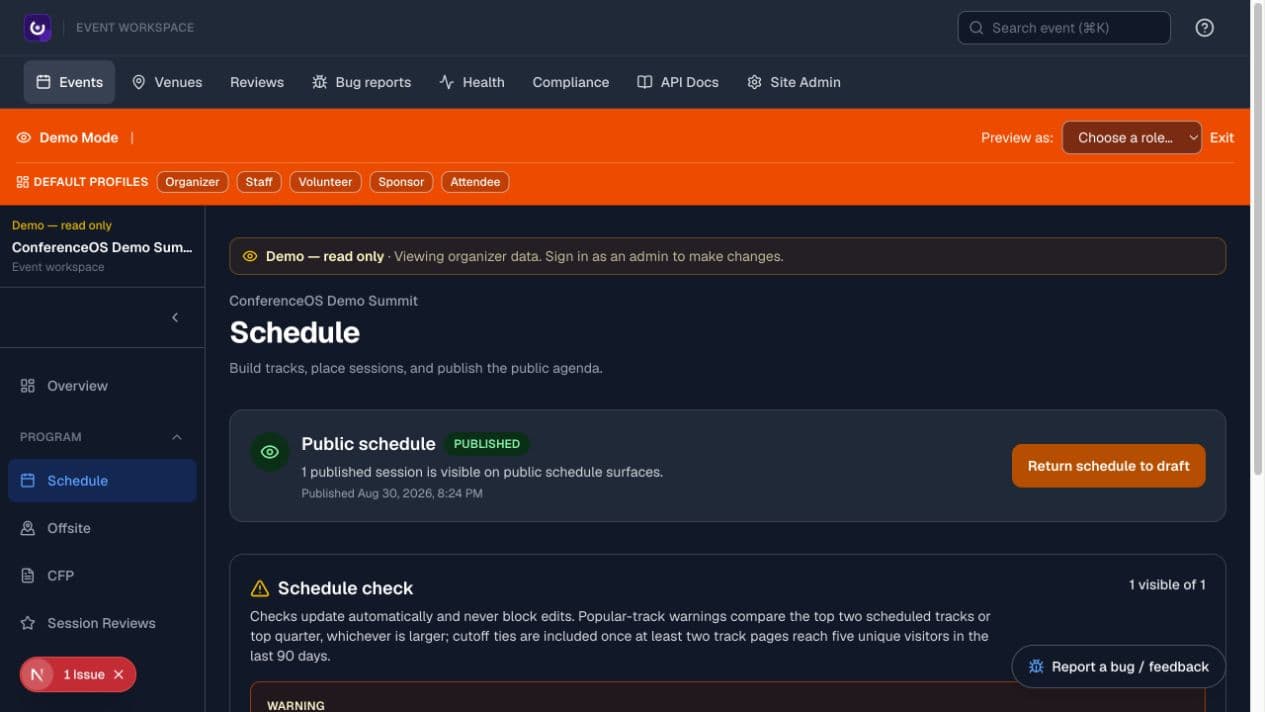
Figure 1 — The schedule workspace combines draft/published state, automated checks, and board/list tools for assigning sessions to rooms and times.
Understand how the program workflow works
The program moves through distinct records and decisions:
- A speaker submits a proposal through the public CFP.
- Event-scoped reviewers score or recuse from proposals.
- An organizer accepts, declines, or waitlists each proposal.
- Accepted content becomes schedulable sessions.
- The organizer assigns time and room, resolves conflicts, and publishes.
- Speaker assets, reviews, pull quotes, recordings, and recap content are managed around the published session.
Review scores support the organizer's decision; they never publish, accept, or decline a proposal automatically.
Configure and open the CFP
Before you start: decide the submission window, themes, session formats, audience levels, required fields, review rubric, decision date, and speaker contact channel.
- Open Program → CFP in the event workspace.
- Configure the public instructions, open and close dates, formats, tracks, levels, and rubric used by the event.
- Keep the CFP closed until the public copy and required fields are complete.
- Open
/events/<event-slug>/cfpsigned out and submit an organizer-approved test proposal. - Confirm the proposal appears in the correct event's CFP queue.
- Remove or clearly label test data before announcing the CFP.
Expected result: the public form accepts submissions only while the CFP is available, and every submission remains scoped to the event. Closing the CFP stops new submissions; it does not delete existing proposals.
Invite and manage reviewers
- In CFP → Reviewers, add the reviewer's email and optional name.
- Send the invitation. When Resend is configured, ConferenceOS emails a signed magic link. Without email delivery, the assignment can exist but the organizer must use an approved delivery path.
- Ask the reviewer to confirm the event before claiming the link.
- Monitor assignment and scoring progress without exposing other reviewers' private notes unnecessarily.
- Re-invite only when a token needs to be regenerated. Remove a reviewer to revoke access and invalidate outstanding tokens.
The magic link is personal, expiring, and event-scoped. Reviewer access does not grant the organizer workspace, and reviewers cannot make CFP decisions.
Review conflicts of interest and scores
- Open a proposal's review detail.
- Review aggregate scores, written feedback, and active recusals.
- Exclude recused reviews from decision reasoning; ConferenceOS also excludes them from score aggregates.
- Reassign work when a reviewer has a conflict.
- Clear a mistaken recusal only as an organizer and add a short audit note when useful.
Do not ask a reviewer to work around conflict controls with another account. Unpublished proposals, scores, notes, recusal reasons, and decisions remain confidential.
Make and communicate CFP decisions
- Confirm the proposal, speaker, scores, conflicts, capacity, track fit, and session-format requirements.
- Choose Accept, Waitlist, or Decline in the organizer CFP detail.
- Preview any decision message and verify the recipient and event.
- Save the decision once and read back the new state.
- If external email is enabled, verify provider delivery evidence rather than assuming the saved decision means the message arrived.
Expected result: the proposal records an organizer decision. Acceptance does not publish a speaker or session until the schedule and public records are prepared.
Build the schedule
- Open Program → Schedule.
- Confirm the event timezone, venue, rooms, and event dates.
- Create or import the schedulable sessions from accepted content.
- Assign each session a start time, duration, room, track, and speakers.
- Use board and list views to find gaps, overlaps, unassigned rooms, and speaker conflicts.
- Run the available schedule checks and resolve each actionable warning.
- Keep the schedule in draft while it is incomplete.
- Preview
/events/<event-slug>/schedulebefore publishing.
The draft is the organizer work surface. The public schedule remains hidden or shows a coming-soon state until publication.
Link a speaker to their account
Link a session's speaker to their account so public speaker pages show the photo, company, job title, bio, and links they keep on their own profile.
- Open the session from Program → Schedule.
- Under Speaker Information, enter the email the speaker signs in with in Account email, then select Link.
- Read the status line under the buttons. If it says no account has verified that email, ask the speaker to sign in with that email and verify it, then link again.
The link needs an account that has verified that exact email. An email on a registration or talk proposal isn't enough, because anyone can type any address there. Letter case and surrounding spaces don't matter. A speaker linked to a different account must be unlinked first. Select Unlink to show the imported details again.
The session's speaker list is matched by name. If more than one speaker matches the name, for example "John A. Smith" and "John B. Smith" for "John Smith", nothing is linked automatically. Make the names distinct, then link again.
The link belongs to the person, not the session. If you change the session's speaker name to someone else and save, the link is removed, and public speaker pages show the new speaker's imported details. Changing only letter case or spacing keeps the link.
Speakers whose accepted talk proposal is linked to their account are linked automatically the next time they open their profile, while they're still the session's speaker. If you change a session's speaker to someone else, the original proposer isn't linked to that session.
Unlink is temporary for those speakers. Their next profile visit links the session again. To stop that, change the session's speaker or mark the proposal as not accepted.
Publish or update the schedule
- Reconfirm dates, timezone, room names, track labels, speaker attribution, session descriptions, accessibility notes, and virtual links.
- Publish the schedule from the organizer workspace.
- Open the public schedule signed out and check list/grid views, filters, session detail, and speaker pages.
- After any later change, verify the affected public session and communicate material changes through the event's approved channel.
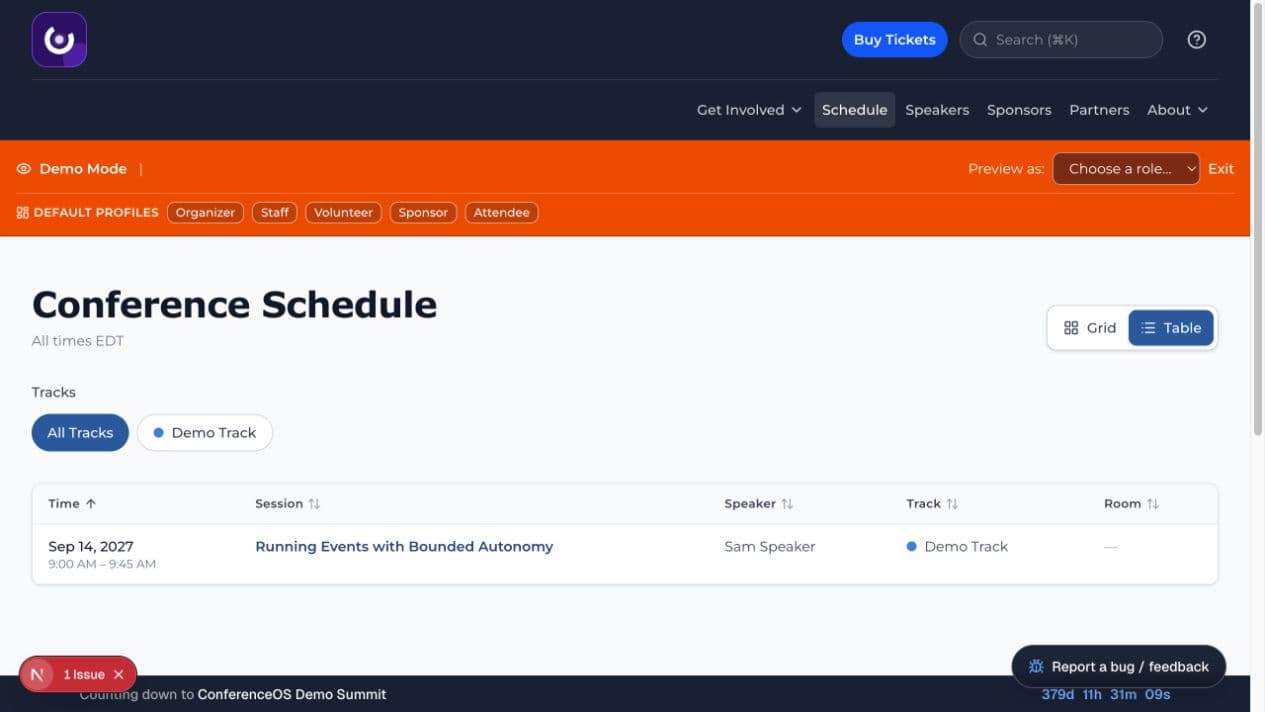
Figure 2 — The public schedule exposes only published sessions and states the event timezone above the agenda.
Expected result: published sessions become visible to attendees. Unpublishing or moving a session changes the official program; it does not automatically notify every affected person unless the organizer sends a message.
Manage offsite activities
Use Program → Offsite for receptions, dinners, tours, or other activities that are related to the event but need separate capacity, location, or publication controls.
- Create the activity with a clear public title and description.
- Set its local start/end time, address or meeting point, capacity, and access instructions.
- Publish only when ownership, transportation, accessibility, and emergency contacts are confirmed.
- Test the offsite detail page signed out.
An offsite activity is not automatically a ticket type or schedule session. Connect the appropriate registration or communication workflow explicitly.
Prepare speaker cards and published speaker information
- Open Program → Speaker Cards.
- Review the speaker name, title, organization, biography, headshot, public links, and associated sessions.
- Correct the organizer record or ask the speaker for approved material.
- Generate or export only approved cards and confirm that the schedule is in the intended publication state.
- Check the public speaker directory and individual speaker page.
Do not publish private contact information, travel details, reviewer feedback, or a draft speaker record merely because an asset generator can display it.
Run link-only virtual sessions
ConferenceOS 1.0 treats virtual delivery as a provider link plus optional attendance import, not as an embedded player.
- Create the webinar or meeting in the approved provider.
- Open Operations → Virtual for the event.
- Select the scheduled session and keep Link-only mode enabled.
- Add the public registration URL and optional join URL.
- Test
/events/<event-slug>/virtual/<session-id>signed out. - After the session, add the approved recording URL so the call to action can become Watch recording.
- Run an authorized attendance import or sync only when the provider supports it, then reconcile imported attendees with registrations.
Expected result: attendees see one clear external Register, Join, or Watch recording action. ConferenceOS does not show an in-app player or public attendance widgets in link-only mode.
Moderate session reviews and extract pull quotes
- Open Program → Session Reviews after review collection is enabled.
- Filter by event/session and inspect the rating and written content.
- Hide or moderate content that violates event policy or exposes private information; preserve the underlying audit trail where the product does so.
- Open Program → Pull Quotes to select approved excerpts for public use.
- Confirm the quote, attribution, consent or publication basis, and linked session before using it in promotion or recap content.
Moderation changes public presentation, not the truth of the original event record. Never manufacture a quote or imply an unpublished review is public.
Build and publish the recap
- Open Program → Recap after the event.
- Generate draft session recaps or newsletter blocks when AI is configured, or write the approved copy manually.
- Fact-check names, claims, session details, links, slides, and recordings.
- Edit every generated block; generated copy is a draft, not evidence.
- Publish only sessions and assets the organizer is authorized to release.
- Open
/events/<event-slug>/recapsigned out and verify the result.
Expected result: the public recap assembles only published material. Missing or private recordings and slides remain unavailable.
Troubleshoot the program workflow
- The CFP form is unavailable: check event and CFP lifecycle dates plus public visibility.
- A reviewer has no queue: verify the assigned email, event, invitation state, and whether the token was used, expired, or revoked.
- A score is missing from the aggregate: check for a recusal or removed reviewer assignment.
- An accepted talk is not public: acceptance is separate from session creation, placement, and schedule publication.
- A session is missing from the public schedule: verify session publication and the schedule's overall publish state.
- The virtual CTA is wrong: verify event/session timing and registration, join, and recording URLs.
- A recap contains an error: unpublish or correct the block, then recheck the public page; do not rely on regeneration alone.