Attendee guide
Each ConferenceOS event has public pages under /events/<event-slug>. The organizer decides which pages are enabled, when registration opens, and when the schedule is published.
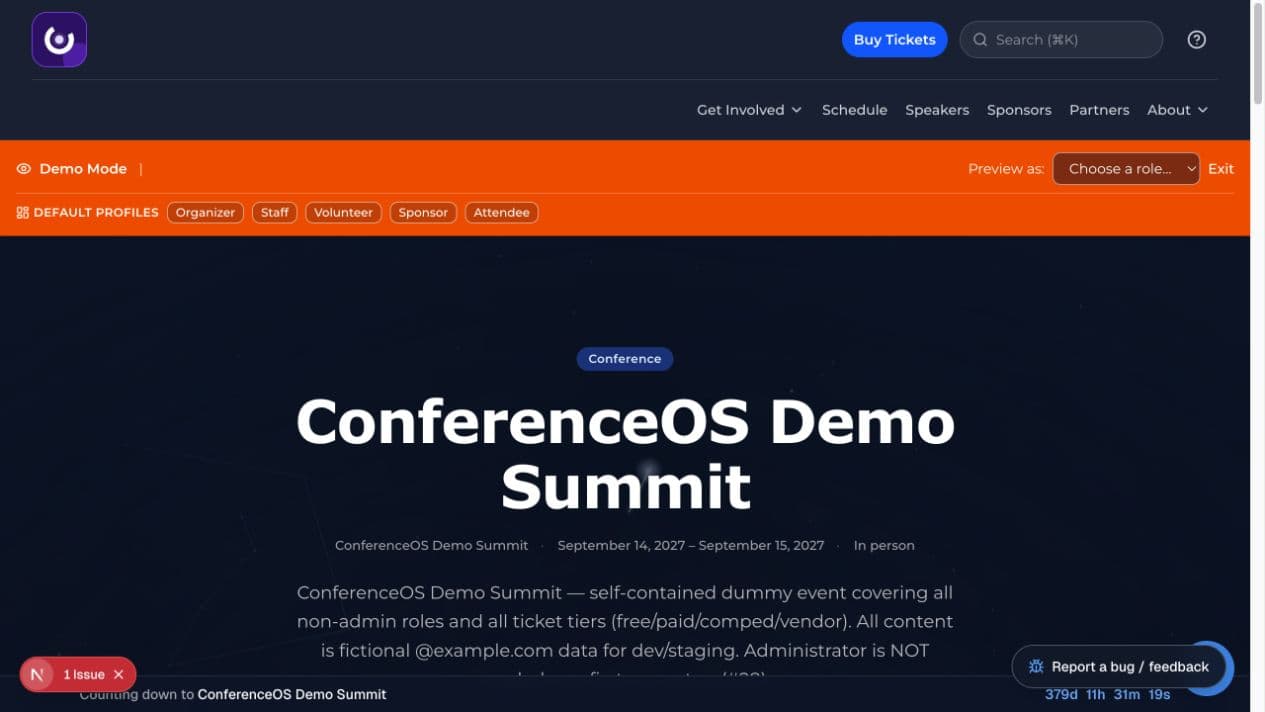
Figure 1 — The event home collects the published event description, date, location, participation links, sessions, speakers, sponsors, and policies.
Find event information
Use the link supplied by the event organizer and confirm the event name, dates, location, and HTTPS domain before entering personal or payment information. Common public paths include:
/events/<event-slug>— event overview/events/<event-slug>/register— ticket selection and registration/events/<event-slug>/schedule— published agenda/events/<event-slug>/speakers— published speakers/events/<event-slug>/sponsors— published sponsors/events/<event-slug>/policies— event policies/events/<event-slug>/scholarships— scholarship information and application/events/<event-slug>/volunteers— volunteer opportunities
The header may show only the features the organizer has enabled. A missing link does not necessarily mean the URL is broken.
Register
- Open
/events/<event-slug>/register. - Choose an available ticket type and check its price, format, inventory, and sale window.
- Enter the requested attendee information accurately.
- If payment is required, complete the hosted Stripe checkout on the expected HTTPS domain. ConferenceOS never asks you to send card details by email.
- Return to the confirmation page and keep the confirmation message or QR code.
Payment availability depends on the event operator's Stripe configuration. Demo events never create a real checkout session.
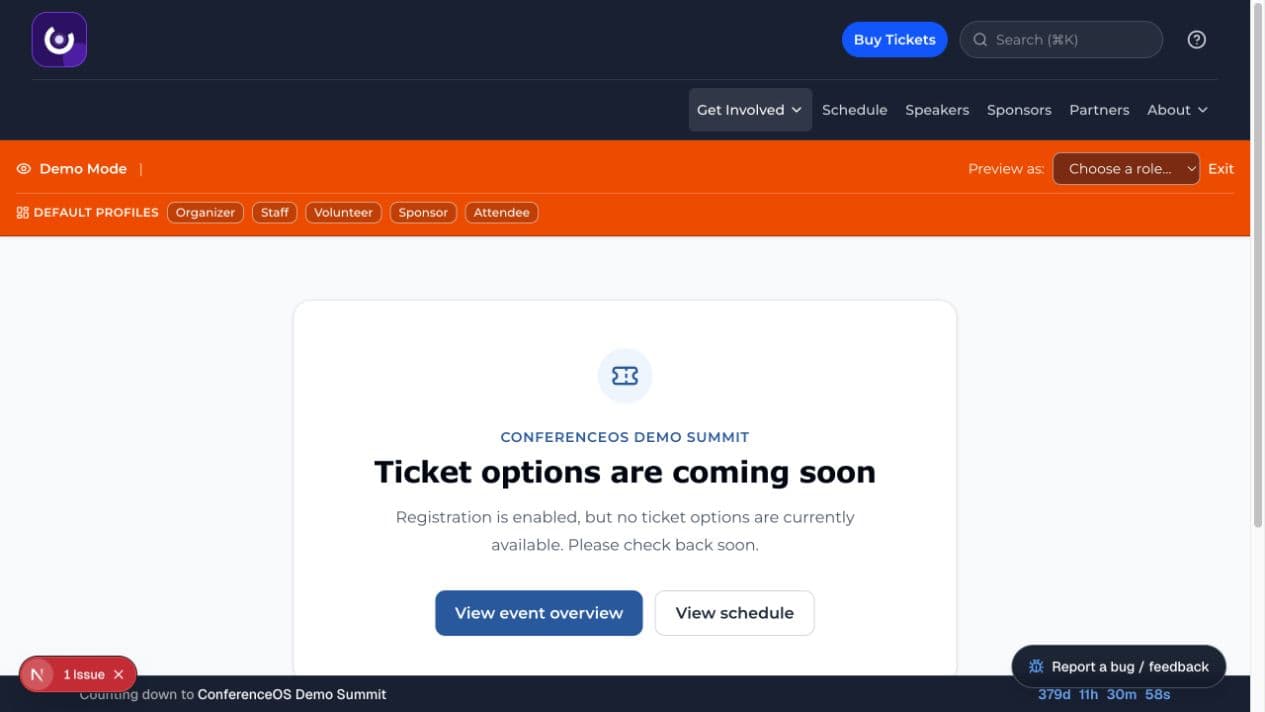
Figure 2 — Before a sale window opens, or when no eligible inventory is available, the registration page fails safely with a clear status and links back to the event and schedule.
If ticket options are unavailable, check the published sale dates or contact the organizer. Repeated refreshes do not create inventory, and a registration is not confirmed until ConferenceOS shows a successful result.
Use the schedule
After publication, /events/<event-slug>/schedule lists public sessions. Use the track filters and grid/table controls when available. Session detail pages show the time, room, speakers, and description released by the organizer. Times are formatted in the event's configured timezone.
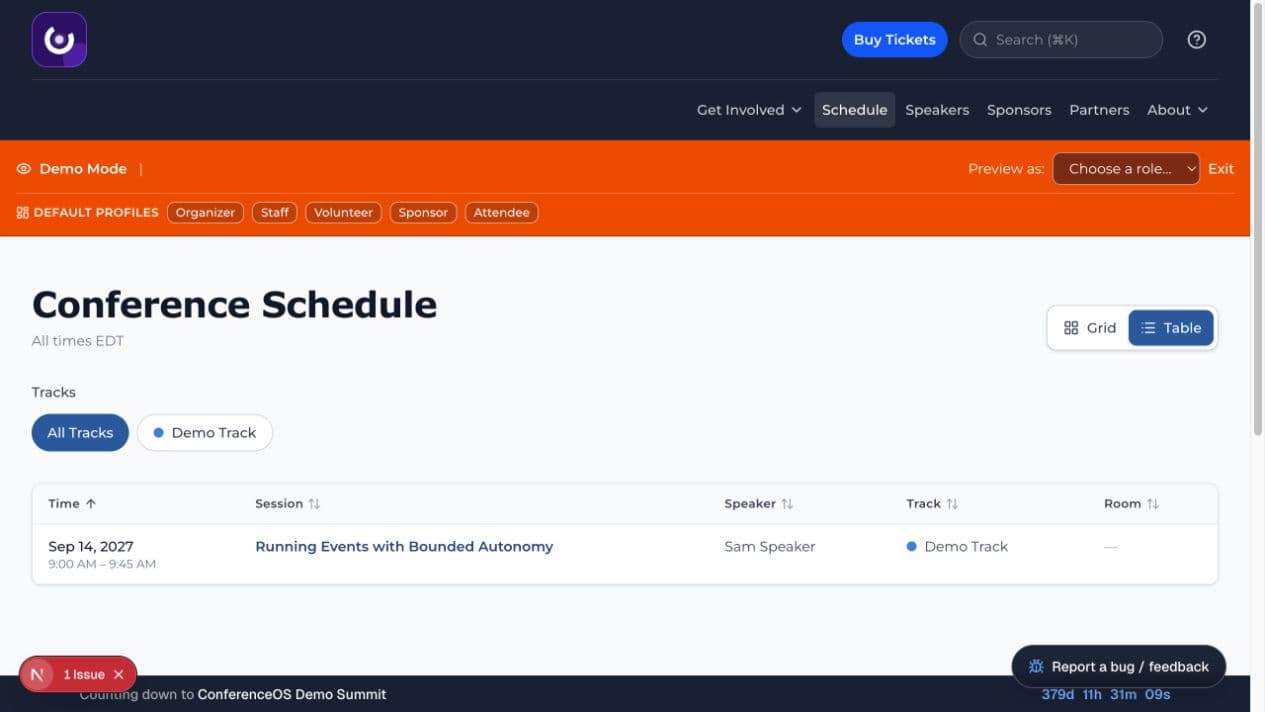
Figure 3 — The public schedule shows only published sessions and states the event timezone above the agenda.
A draft schedule is intentionally hidden. Recheck the official event page before travel because an organizer can update the program.
Scholarships
If offered, the scholarship page explains categories and the application window. Submit one complete application, then keep the confirmation. Approval criteria, timing, and ticket fulfillment belong to the organizer.
Volunteering
The volunteer page lists eligibility, benefits, open needs, capacity, times, and locations. A volunteer signup is a request, not an automatic assignment or ticket. See the volunteer guide.
Event-day check-in
Bring the registration confirmation or QR code requested by the organizer. Staff may scan it or search manually. A successful check-in changes the attendance state; holding a confirmed ticket is not the same as being checked in.
For a missing record, duplicate badge, transfer, unpaid registration, or accessibility need, use the event's help desk. Check-in staff cannot override payment, inventory, or policy decisions.
Profile and account
Account pages supply contact and public identity information for features available to your role. Keep the profile current, avoid putting secrets in profile fields, and use the exact email associated with the registration when asking for help.
If we added you from a past event or you used more than one email with us, see We added you from a past event.
Reviews
When enabled, attendees can review an event or session. Submit honest, event-related feedback without private personal information. Organizers may moderate what becomes public.
Event recap
After an event, the recap can collect published sessions, highlighted reviews, slides, and recordings. Only material the organizer releases appears there; missing or private recordings are intentionally not exposed.
Get help
Refund, transfer, accessibility, venue, code-of-conduct, and event-policy decisions belong to the organizer. Use contact information on the event site or in the confirmation message. Do not send payment details, passwords, or full identity documents through an unverified support channel.