Organizer guide
ConferenceOS gives organizers one event-scoped workspace for event setup, tickets, the call for proposals, schedules, registrations, CRM, messaging, sponsorship, onsite operations, and reports. Protected pages require Clerk and an authorized site admin or event member; the exact tabs and actions depend on that principal's permissions.
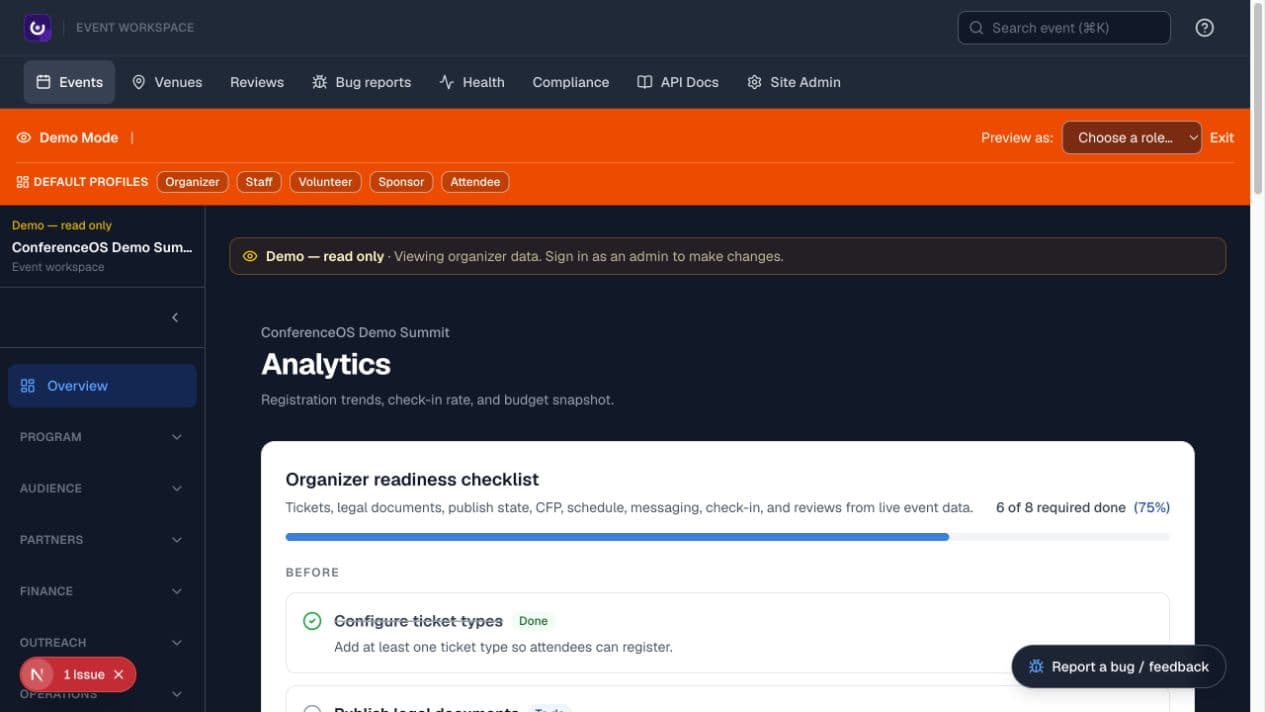
Figure 1 — The event overview combines a live readiness checklist with registration, attendance, program, and budget signals.
For step-by-step procedures, expected results, limits, and troubleshooting, use the complete feature chapters:
- Event setup and publishing
- Program, CFP, and content
- Audience, registration, and event day
- CRM, sponsors, partners, vendors, and support
- Outreach, promotions, analytics, and reporting
- Operations, projects, integrations, and administration
Understand the workspace
Select an event from /organizer/events. The left navigation groups tools by Program, Audience, Partners, Finance, Outreach, and Operations. The event name above the navigation is the scope boundary; verify it before every import, export, message, or bulk change.
The readiness checklist is derived from current event data. Complete every required item before launch, but investigate warnings instead of treating them as automatic blockers or completed work.
Start an event
- Open
/organizer/eventsand choose Create Event. - Enter the event name, slug, dates, timezone, and format.
- Open the event workspace and complete Settings before sharing public links.
- Configure ticket types under Tickets if the event accepts registrations.
Public event routes use /events/<event-slug>. Always test that URL in a signed-out browser before announcing it.
Settings, branding, and policies
Use Settings to configure event identity, dates, timezone, format, venue, capacity, public navigation, lifecycle state, and the knowledge base available to attendee-facing help. Configure organization and event branding through the provided controls; do not place secrets in public copy or branding fields.
Publish the event's Terms of Service, Privacy Policy, Refunds & Transfers, Code of Conduct, and Accessibility information before sending people to a live registration flow. Policy and legal content remain the operator's responsibility.
Public navigation
Open /organizer/events/<event-slug>/navigation to rename, reorder, group, hide, or add links in an event's header and footer. The header uses the same configured links on desktop and mobile. On sites with a parent-site bar, the featured event's navigation also appears on site-level pages.
The default event menu contains Participate, Schedule, Speakers, Sponsors, Partners, and Event Info. Past events and Past speakers are not added automatically. To add these in the event editor, use full HTTPS URLs with External enabled: https://<event-site>/speakers for the speaker archive, or a group linking to https://<event-site>/events/<past-event-slug>. Internal event links are restricted to the current event. Removing a menu link does not remove its page.
With no saved rows, the editor previews the built-in defaults. The first edit saves the whole list. Hiding every item keeps the menu empty; deleting every saved row restores the defaults. Event identity, search, Help, account controls, and the separately managed registration action are outside this link list.
Build and publish the program
- Configure the CFP before sending speakers to
/events/<event-slug>/cfp. - Review proposals in the event CFP workspace.
- External CFP reviewers: under the event CFP page → Reviewers, invite by email (optional name). When Resend is configured, ConferenceOS sends a signed magic-link invite. The invitee opens the link to score that event's submissions without needing a full account first (scoped session). Re-invite regenerates the token and re-sends; Remove revokes access and invalidates outstanding tokens. Reviewers can score only — accept/decline stays organizer-only. Without Resend, the assignment is still saved (configure email for delivery).
- Reviewer score aggregates on the CFP detail panel exclude anyone who self-recused for a conflict of interest. The same panel lists active COI recusals (reviewer id + optional reason) so you can reassign or clear a mistaken recusal. Clearing a recusal is organizer-only and should include a short audit note when useful.
- Build the schedule under Schedule, assigning sessions to rooms and times.
- Keep the schedule in draft while it is incomplete. Public schedule pages show a coming-soon state until the schedule is published.
- Check the public schedule and speaker pages after publication.
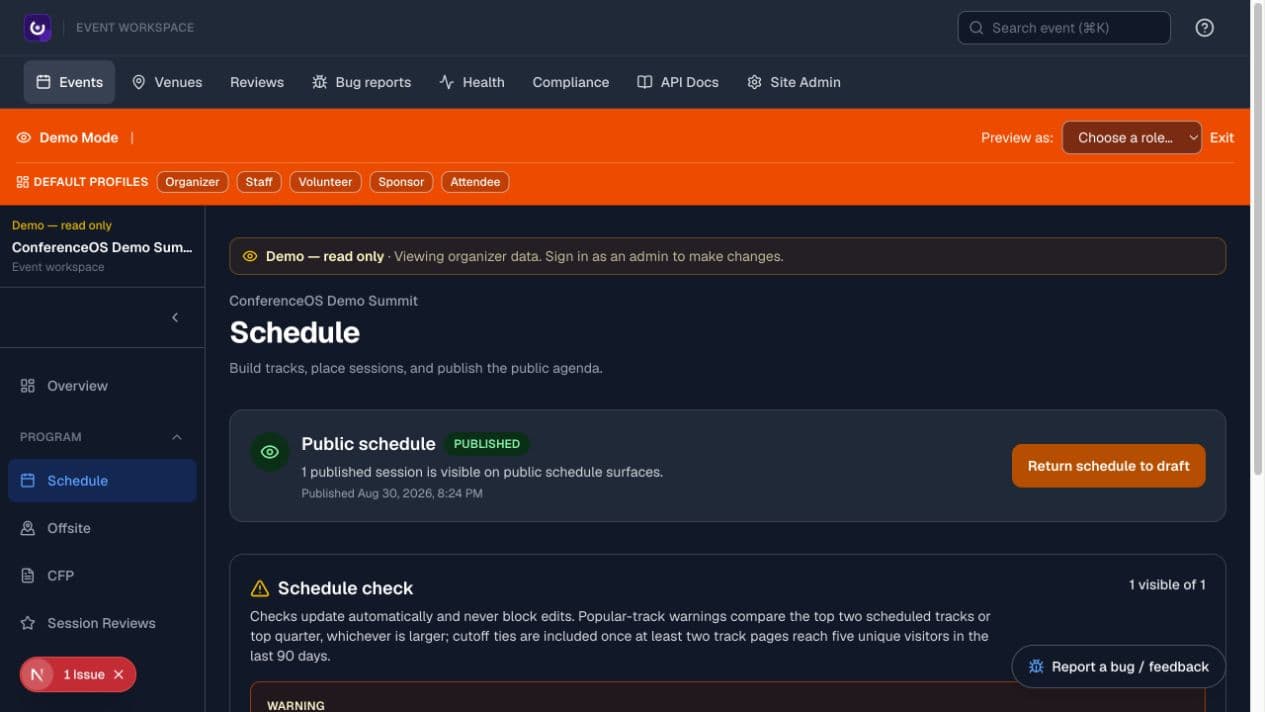
Figure 2 — The schedule workspace shows publish state, automated checks, and the board/list tools used to place sessions.
Activity feed
Open Activity in the event workspace for a reverse-chronological feed of operational updates: registrations, webinar imports, media, sponsors, speakers (including asset/slides uploads), and CFP decisions. Use the category chips to hide streams you do not need; your hide preferences are stored for you as the signed-in organizer. Each row links to the related organizer record when one exists. The feed is paginated and reads existing DomainEvent rows (instrumentation is the separate unified write path).
CRM, support, and relationship work
Open Audience → CRM for the event-scoped people, organizations, and pipeline views. Records can reflect registrations, speakers, sponsors, vendors, volunteers, and imported prospects. Search before creating or importing to avoid collisions.
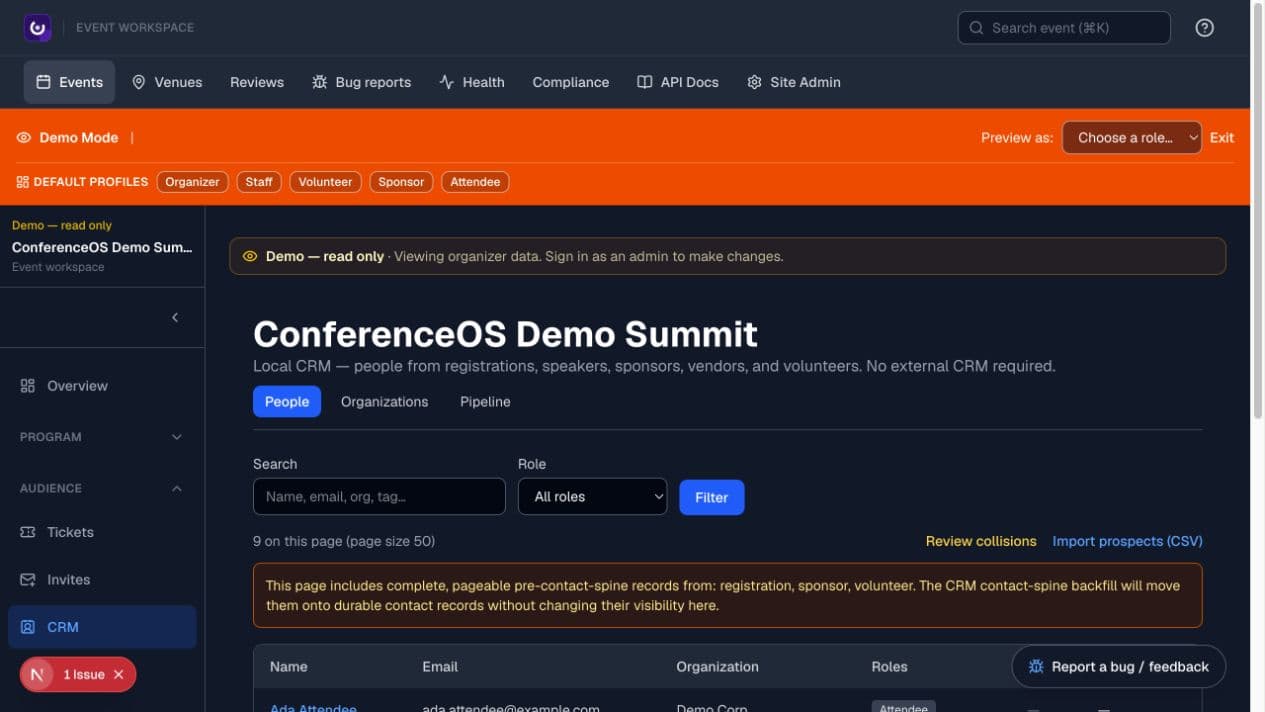
Figure 3 — The CRM people view makes event scope, role history, search, and collision review visible before relationship work begins.
Subject detail pages compose notes, tasks, tags, timeline, pipeline, support, enrichment, and role-specific context. Add only information needed for event operations. Use support cases for inbound help work and CRM tasks for follow-up; do not turn private correspondence into public event content.
Support mailbox and sponsor-routing features depend on the operator's email provider and Workspace configuration. Verify the recipient event and queue before transferring a case. An unknown sponsor sender must not silently create an EventSponsor relationship.
Registration and event day
- Registrations are managed inside the event workspace. Capacity and ticket availability must be checked before changing inventory.
- Ticket sale windows are optional. A missing start makes a ticket available as soon as event sales are open; a missing end leaves it available until another availability rule closes it.
- Stripe checkout is available only when valid Stripe configuration is present. Do not advertise live payments on an installation that still uses test or placeholder keys.
- Use Check-in for attendee lookup and QR scanning. The checked-in state is the attendance record used by attendance-dependent features.
- Use reports and exports only for the event you are operating, and handle attendee data according to your privacy and retention policy.
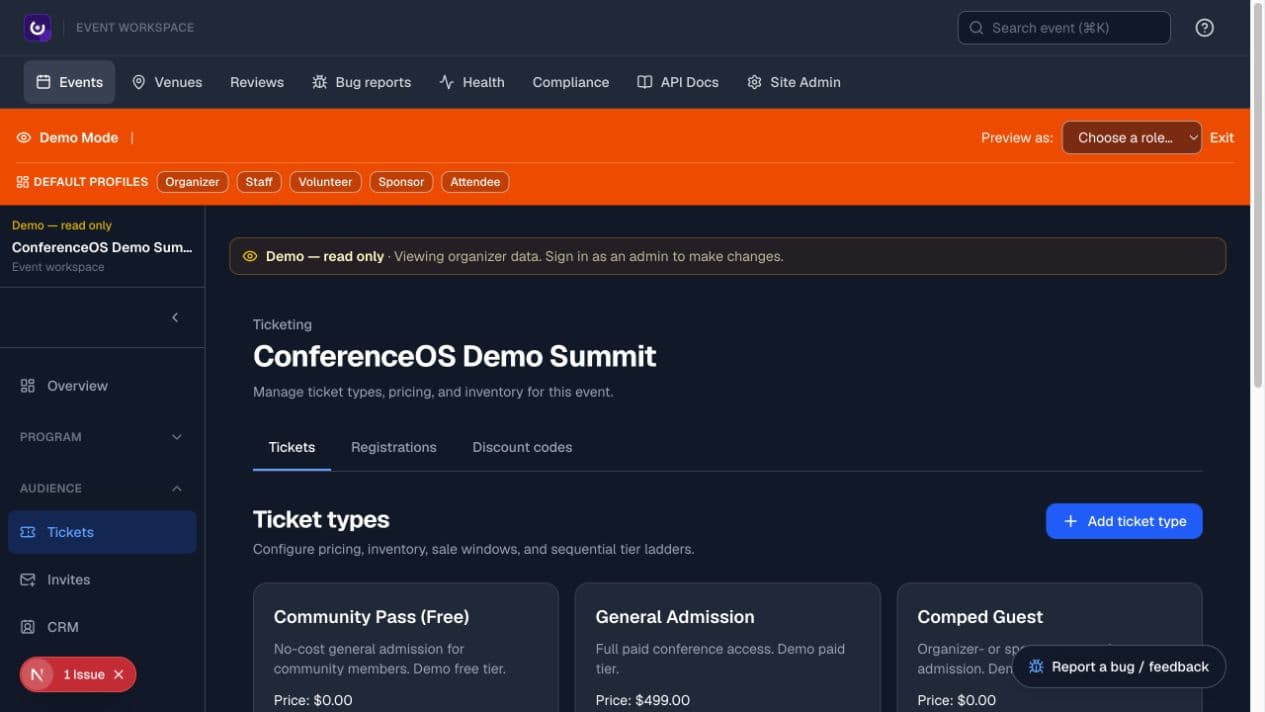
Figure 4 — Ticketing exposes price, inventory, sales windows, sold counts, checkout holds, and tier relationships in one event-scoped view.
Discount codes, complimentary tickets, refunds, transfers, inventory changes, and payment-provider operations have financial or customer effects. Review the event, amount, recipient, and resulting state before confirming them.
Messaging and integrations
Email, SMS, AI, ESP, Slack, and webinar integrations are optional. Their controls may appear while the corresponding environment variables are unset; an unset integration must degrade safely instead of being presented as active.
Use Messaging for broadcasts and templates, Support for operational inbound work, and Promotions for asset packages and UTM-tagged landing links. Promotion asset generation does not create or spend an ad campaign; see the promoter guide. Test any external-send workflow with an approved recipient and verify provider delivery evidence before a live send.
Virtual sessions (link-only)
Virtual sessions are a link plus an import, not an in-app player. Under Virtual for an event:
- Keep Link-only mode on (the 1.0 default). The public page
/events/<event-slug>/virtual/<session-id>shows one clear Register / Join button to your provider — no embedded player, no in-app registration form, and no attendance widgets for attendees. - Create the webinar in WebinarJam, Beehiiv, Zoom, or another provider.
- Paste the registration URL (primary public CTA) and optional join URL.
- After the session ends, set the recording URL so the public CTA becomes “Watch recording.” Closed or past events follow the same ended-state rules as the rest of the public site (no “registration open” treatment).
Turn link-only off only if you need the legacy in-app registration surface. Attendance metrics can still sync for organizers when a provider supports them; they are not shown on the public link-only page.
Sponsorship
Use the event sponsorship workspace to manage sponsor tiers, organizations, public assets, offers, and virtual-booth information. Review every public logo, link, description, and benefit before publishing it. Sponsor access is organizer-provisioned, and private contracts or internal notes must not be exposed on public sponsor pages.
Provision sponsor access only for the intended organization and event. Check payment state, level, benefit inventory, pass allotment, physical booth, and public virtual-booth content separately. Consent governs attendee-list access; a sponsorship does not create blanket marketing permission.
Volunteers and check-in staff
Publish volunteer needs with clear eligibility, benefits, capacity, dates, times, and locations. Review signups, assignments, and event-member access before event day.
Give onsite staff the narrow checkin role when they need only /checkin. Test QR scanning and manual lookup, document exception handling, and keep an organizer available for payment, inventory, transfer, badge, and identity questions. See the staff guide and volunteer guide.
Shared reports
A tokenized report link grants access to the report without an organizer sign-in. Treat the URL like a bearer credential: share it only with the intended recipient, do not place it in public channels, and revoke or replace the link if it is exposed. The report remains scoped to the event that created it.
Before publishing
- Verify the event slug, timezone, dates, venue, ticket inventory, policies, and schedule state.
- Test a registration with the same payment mode you intend to use.
- Test protected organizer access and signed-out public access separately.
- Confirm that the deployment uses the intended database and not a shared production database.
Before opening doors
- Confirm the correct event, local timezone, venue, rooms, and published schedule.
- Reconcile ticket inventory, pending payments, transfers, complimentary registrations, and badge data.
- Test the check-in desk with an approved test record and document escalation.
- Confirm the onsite, virtual, volunteer, speaker, sponsor, accessibility, and incident contacts.
- Verify that broadcast drafts, report links, sponsor lists, and exports are scoped to this event.
After the event
- Reconcile attendance and unresolved support work.
- Complete sponsor benefits and consent-governed lead handling.
- Publish only approved recordings, slides, reviews, and recap material.
- Revoke temporary accounts, report links, invitations, API keys, and agent access that are no longer required.
- Apply the operator's retention, deletion, refund, and financial-reconciliation policies.
Agents and the organizer skills library
You can operate much of the event from an MCP-capable agent (Claude Code, Cursor, and similar) using the organizer skills library — workflow-shaped SKILL.md files under plugins/conference-os-admin/. That library is separate from in-app promotion playbooks (paid-ad asset packs).
- Turn on human MCP access in the MCP column of Site Admin → Users & roles (
/organizer/admin/users), or use an event-scoped API key with themcpscope. Never paste keys into chat. - Lifecycle workflows: CFP decisions (
cos-run-cfp), schedule build (cos-run-schedule), launch checklist (cos-run-launch). Batch writes dry-run and require your explicit confirm. - Capability is whatever
tools/listreturns for your principal — see using-agents.md and MCP-RBAC.md.